> ## Documentation Index
> Fetch the complete documentation index at: https://docs-staging-feat-docs-5417-afc.mintlify.site/llms.txt
> Use this file to discover all available pages before exploring further.

# ユースケース：Formsを使用して追加のサインアップ手順を構成する

> Forms for Actionsを使用して追加のサインアップ手順を構成する方法を説明します。

<Card title="始める前に">
  1. 以下のスコープを有効にして、[マシンツーマシンアプリケーション](https://auth0.com/docs/get-started/auth0-overview/create-applications/machine-to-machine-apps)を作成します。

  * `read:users`
  * `update:users`
  * `create:users`
  * `read:users_app_metadata`
  * `update:users_app_metadata`
  * `create:users_app_metadata`

  2. マシンツーマシンアプリケーションの資格情報を使って[Vault接続](/docs/ja-jp/customize/forms/vault)を追加します。
</Card>

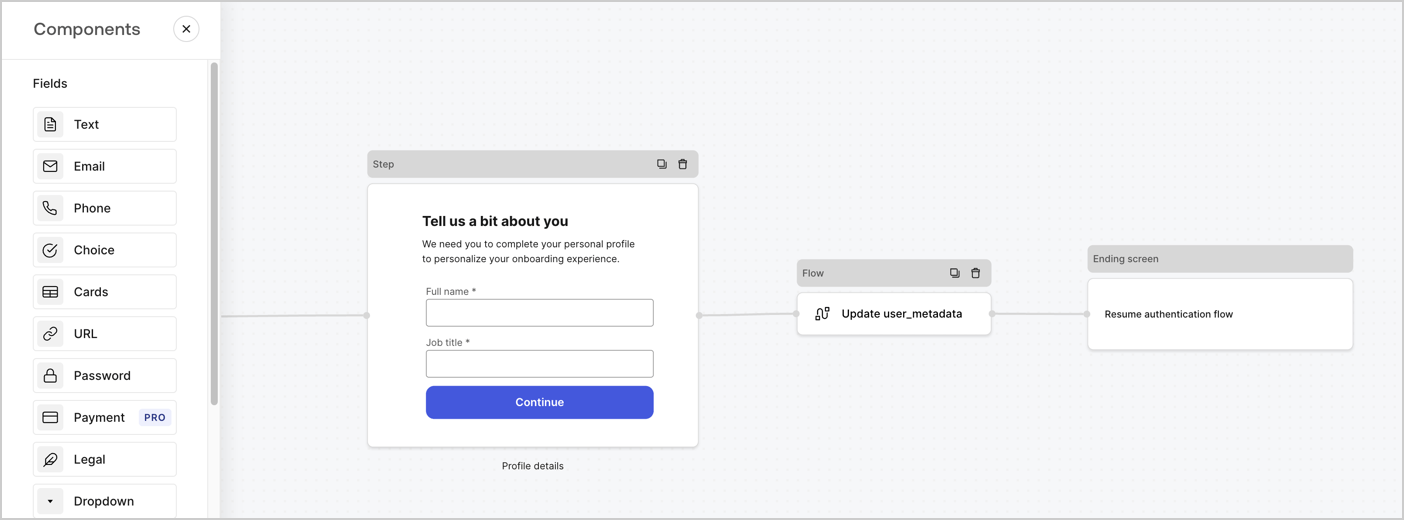
Forms for Actionsを使用すると、サインアップまたはログインフローに追加のステップを作成し、ユーザーがアプリケーションにアクセスできるようにする前にそれらのステップを必須にすることができます。
<Frame>
  <img src="https://mintcdn.com/docs-staging-feat-docs-5417-afc/Dj65AYljXy-mUbh-/docs/images/ja-jp/cdy7uua7fh8z/ZOQNi6SrEC9OREcBbdiJ3/d79f84fb61acd5473bdf932527e26d58/custom-signup-form.png?fit=max&auto=format&n=Dj65AYljXy-mUbh-&q=85&s=668eb6ec943a104f6f268cb38d9d76df" alt="Dashboard > Actions > Forms > Use Case Custom Signup Form" data-og-width="1404" width="1404" data-og-height="520" height="520" data-path="docs/images/ja-jp/cdy7uua7fh8z/ZOQNi6SrEC9OREcBbdiJ3/d79f84fb61acd5473bdf932527e26d58/custom-signup-form.png" data-optimize="true" data-opv="3" srcset="https://mintcdn.com/docs-staging-feat-docs-5417-afc/Dj65AYljXy-mUbh-/docs/images/ja-jp/cdy7uua7fh8z/ZOQNi6SrEC9OREcBbdiJ3/d79f84fb61acd5473bdf932527e26d58/custom-signup-form.png?w=280&fit=max&auto=format&n=Dj65AYljXy-mUbh-&q=85&s=bd88704167e5491b8639fe0fa1b31d1e 280w, https://mintcdn.com/docs-staging-feat-docs-5417-afc/Dj65AYljXy-mUbh-/docs/images/ja-jp/cdy7uua7fh8z/ZOQNi6SrEC9OREcBbdiJ3/d79f84fb61acd5473bdf932527e26d58/custom-signup-form.png?w=560&fit=max&auto=format&n=Dj65AYljXy-mUbh-&q=85&s=a89edd6db5de29c7c738bf2f1f807ced 560w, https://mintcdn.com/docs-staging-feat-docs-5417-afc/Dj65AYljXy-mUbh-/docs/images/ja-jp/cdy7uua7fh8z/ZOQNi6SrEC9OREcBbdiJ3/d79f84fb61acd5473bdf932527e26d58/custom-signup-form.png?w=840&fit=max&auto=format&n=Dj65AYljXy-mUbh-&q=85&s=3cfa6a6f9b84604faf0246aa32cc3ef3 840w, https://mintcdn.com/docs-staging-feat-docs-5417-afc/Dj65AYljXy-mUbh-/docs/images/ja-jp/cdy7uua7fh8z/ZOQNi6SrEC9OREcBbdiJ3/d79f84fb61acd5473bdf932527e26d58/custom-signup-form.png?w=1100&fit=max&auto=format&n=Dj65AYljXy-mUbh-&q=85&s=9f0523029d3a1f2f96365ca6eb5f7fdb 1100w, https://mintcdn.com/docs-staging-feat-docs-5417-afc/Dj65AYljXy-mUbh-/docs/images/ja-jp/cdy7uua7fh8z/ZOQNi6SrEC9OREcBbdiJ3/d79f84fb61acd5473bdf932527e26d58/custom-signup-form.png?w=1650&fit=max&auto=format&n=Dj65AYljXy-mUbh-&q=85&s=e754ee4cd2a7bba53771a9d8dd0291df 1650w, https://mintcdn.com/docs-staging-feat-docs-5417-afc/Dj65AYljXy-mUbh-/docs/images/ja-jp/cdy7uua7fh8z/ZOQNi6SrEC9OREcBbdiJ3/d79f84fb61acd5473bdf932527e26d58/custom-signup-form.png?w=2500&fit=max&auto=format&n=Dj65AYljXy-mUbh-&q=85&s=a750e6bcd71e3898320544ccca223240 2500w" />
</Frame>

以下のセクションでは、ノードとフローを使用して追加のサインアップステップフォームを作成する方法と、フォームを[ポストログイン](/docs/ja-jp/customize/actions/explore-triggers/signup-and-login-triggers/login-trigger)アクションに追加する手順について説明します。

## フォームをゼロから作成する

情報を収集するためのフォームを作成するには、次の手順に従ってください。

1. **［Auth0 Dashboard］>［Actions（アクション）］>［Forms（フォーム）］** の順に選択して、フォームエディターを開きます。
2. **［Create Form（フォームを作成）］** > **［Start from scratch（初めから作成する）］** の順に選択します。

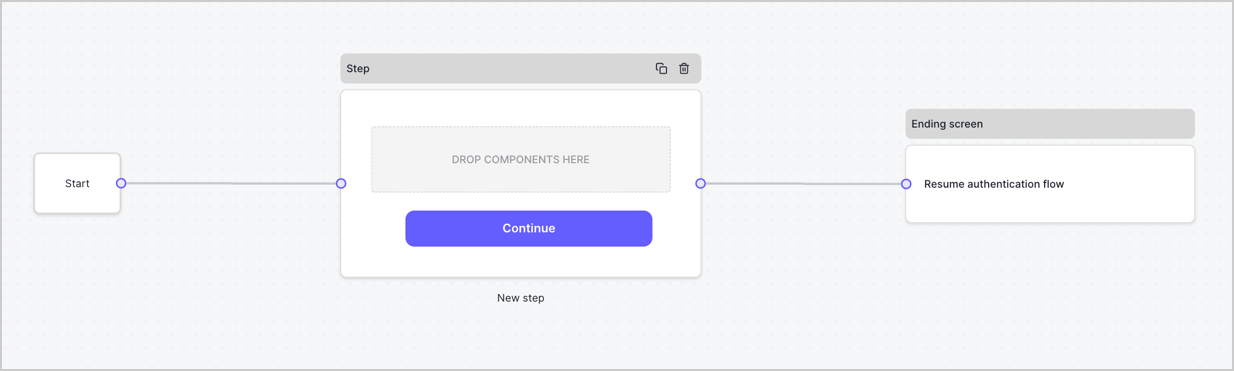
特に設定を変更しない限り、新しいフォームには開始ノード、ステップノード、および終了スクリーンノードが含まれます。
<Frame>
  <img src="https://mintcdn.com/docs-staging-feat-docs-5417-afc/wd-0AOYIePq_aePO/docs/images/ja-jp/cdy7uua7fh8z/2TZ9jSjgEcARFpULI6hz4R/a4319a1bd482f2ee5cc23100fdb2f42c/New-form-Forms-for-action-use-case.png?fit=max&auto=format&n=wd-0AOYIePq_aePO&q=85&s=0c8f364733e67d6cebe42cee58d8fe70" alt="Dashboard > Forms > Use Cases > Form" data-og-width="1234" width="1234" data-og-height="371" height="371" data-path="docs/images/ja-jp/cdy7uua7fh8z/2TZ9jSjgEcARFpULI6hz4R/a4319a1bd482f2ee5cc23100fdb2f42c/New-form-Forms-for-action-use-case.png" data-optimize="true" data-opv="3" srcset="https://mintcdn.com/docs-staging-feat-docs-5417-afc/wd-0AOYIePq_aePO/docs/images/ja-jp/cdy7uua7fh8z/2TZ9jSjgEcARFpULI6hz4R/a4319a1bd482f2ee5cc23100fdb2f42c/New-form-Forms-for-action-use-case.png?w=280&fit=max&auto=format&n=wd-0AOYIePq_aePO&q=85&s=2b2c853b9196e42f8e7b4d0164b01713 280w, https://mintcdn.com/docs-staging-feat-docs-5417-afc/wd-0AOYIePq_aePO/docs/images/ja-jp/cdy7uua7fh8z/2TZ9jSjgEcARFpULI6hz4R/a4319a1bd482f2ee5cc23100fdb2f42c/New-form-Forms-for-action-use-case.png?w=560&fit=max&auto=format&n=wd-0AOYIePq_aePO&q=85&s=18fdc3b365a69a7f091ac24c25fa7ba2 560w, https://mintcdn.com/docs-staging-feat-docs-5417-afc/wd-0AOYIePq_aePO/docs/images/ja-jp/cdy7uua7fh8z/2TZ9jSjgEcARFpULI6hz4R/a4319a1bd482f2ee5cc23100fdb2f42c/New-form-Forms-for-action-use-case.png?w=840&fit=max&auto=format&n=wd-0AOYIePq_aePO&q=85&s=0a4abcfb4a211b4ba38258cd6c6534b4 840w, https://mintcdn.com/docs-staging-feat-docs-5417-afc/wd-0AOYIePq_aePO/docs/images/ja-jp/cdy7uua7fh8z/2TZ9jSjgEcARFpULI6hz4R/a4319a1bd482f2ee5cc23100fdb2f42c/New-form-Forms-for-action-use-case.png?w=1100&fit=max&auto=format&n=wd-0AOYIePq_aePO&q=85&s=13833d576e3b1ac0a36ca3f6c571c34f 1100w, https://mintcdn.com/docs-staging-feat-docs-5417-afc/wd-0AOYIePq_aePO/docs/images/ja-jp/cdy7uua7fh8z/2TZ9jSjgEcARFpULI6hz4R/a4319a1bd482f2ee5cc23100fdb2f42c/New-form-Forms-for-action-use-case.png?w=1650&fit=max&auto=format&n=wd-0AOYIePq_aePO&q=85&s=25c6d9e3614e474499717f8ee18ee51f 1650w, https://mintcdn.com/docs-staging-feat-docs-5417-afc/wd-0AOYIePq_aePO/docs/images/ja-jp/cdy7uua7fh8z/2TZ9jSjgEcARFpULI6hz4R/a4319a1bd482f2ee5cc23100fdb2f42c/New-form-Forms-for-action-use-case.png?w=2500&fit=max&auto=format&n=wd-0AOYIePq_aePO&q=85&s=39ebe24c6e6786dc3364f6a686283157 2500w" />
</Frame>

### ステップノードを構成する

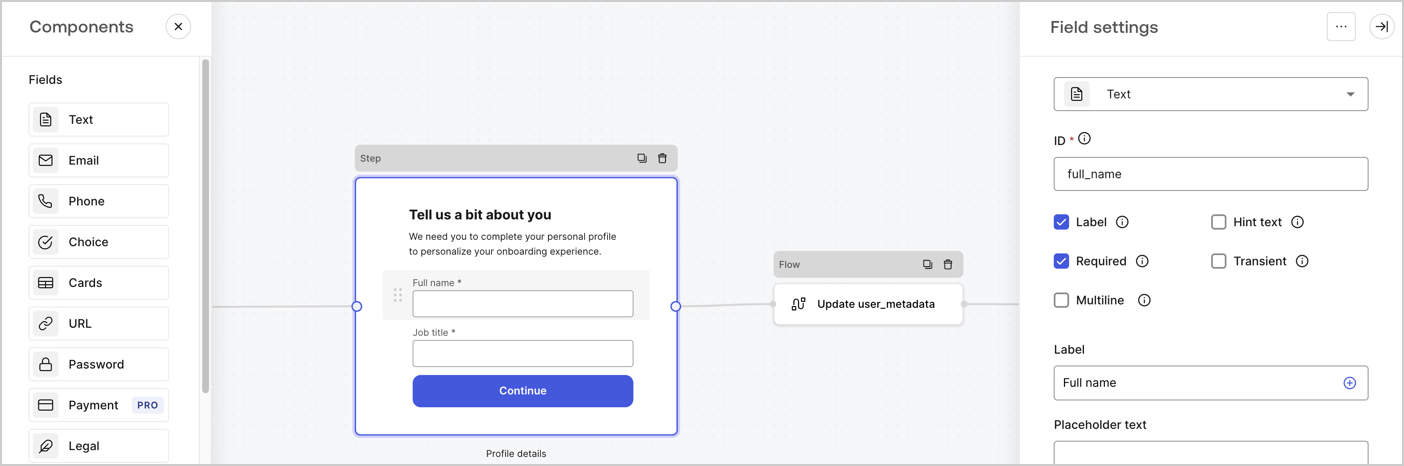
ステップノードは、ユーザーに表示されるグラフィカルインターフェースです。次の手順に従って、ステップノードに[フィールド](/docs/ja-jp/customize/forms/nodes-and-components)を追加し、ユーザーのフルネームと役職の値を収集します。

1. **［Components menu（コンポーネントメニュー）］** から **［Rich text（リッチテキスト）］** フィールドを **［Step（ステップ）］** ノードにドラッグします。

   * **［Rich text（リッチテキスト）］** ：カスタムメッセージを入力します。。
   * **［Save（保存）］** を選択します。
2. **［Text（テキスト）］** フィールドを **［Step（ステップ）］** ノードにドラッグします。

   * **Id** ：`full_name`を入力します。
   * **［Label（ラベル）］** ：`フルネーム`を入力します。
   * **［Label（ラベル）］** ：チェックボックスを有効にします。
   * **［Required（必要）］** ：チェックボックスを有効にします。
   * **［Save（保存）］** を選択します。
3. **［Text（テキスト）］** フィールドを **［Step（ステップ）］** ノードにドラッグします。

   * **Id** ：`job_title`を入力します。
   * **［Label（ラベル）］** ：`役職`を入力します。
   * **［Label（ラベル）］** ：チェックボックスを有効にします。
   * **［Required（必要）］** ：チェックボックスを有効にします。
   * **［Save（保存）］** を選択します。
4. **［Publish（公開）］** を選択し、保存します。

<Frame>
  <img src="https://mintcdn.com/docs-staging-feat-docs-5417-afc/ZAt7448xfJwXCsR8/docs/images/ja-jp/cdy7uua7fh8z/6Kcn0ai9fsVsqHwZpTGByG/37cbf4ffee63a7010926b15f06dd20ac/custom-signup-step-node.png?fit=max&auto=format&n=ZAt7448xfJwXCsR8&q=85&s=d780a6aabbe7f383fe831f9ded71de38" alt="Dashboard > Actions > Forms > Use Case Custom Signup Steps Step node" data-og-width="1404" width="1404" data-og-height="466" height="466" data-path="docs/images/ja-jp/cdy7uua7fh8z/6Kcn0ai9fsVsqHwZpTGByG/37cbf4ffee63a7010926b15f06dd20ac/custom-signup-step-node.png" data-optimize="true" data-opv="3" srcset="https://mintcdn.com/docs-staging-feat-docs-5417-afc/ZAt7448xfJwXCsR8/docs/images/ja-jp/cdy7uua7fh8z/6Kcn0ai9fsVsqHwZpTGByG/37cbf4ffee63a7010926b15f06dd20ac/custom-signup-step-node.png?w=280&fit=max&auto=format&n=ZAt7448xfJwXCsR8&q=85&s=3406c1af5d9f733cfbc71305a5f339d6 280w, https://mintcdn.com/docs-staging-feat-docs-5417-afc/ZAt7448xfJwXCsR8/docs/images/ja-jp/cdy7uua7fh8z/6Kcn0ai9fsVsqHwZpTGByG/37cbf4ffee63a7010926b15f06dd20ac/custom-signup-step-node.png?w=560&fit=max&auto=format&n=ZAt7448xfJwXCsR8&q=85&s=7550fa1dcc622250d654a5b2f8e949e0 560w, https://mintcdn.com/docs-staging-feat-docs-5417-afc/ZAt7448xfJwXCsR8/docs/images/ja-jp/cdy7uua7fh8z/6Kcn0ai9fsVsqHwZpTGByG/37cbf4ffee63a7010926b15f06dd20ac/custom-signup-step-node.png?w=840&fit=max&auto=format&n=ZAt7448xfJwXCsR8&q=85&s=9d0e9eab530a8071caa0e24094e5da30 840w, https://mintcdn.com/docs-staging-feat-docs-5417-afc/ZAt7448xfJwXCsR8/docs/images/ja-jp/cdy7uua7fh8z/6Kcn0ai9fsVsqHwZpTGByG/37cbf4ffee63a7010926b15f06dd20ac/custom-signup-step-node.png?w=1100&fit=max&auto=format&n=ZAt7448xfJwXCsR8&q=85&s=d259a6e6651f1e7aa0b8b62817b5d072 1100w, https://mintcdn.com/docs-staging-feat-docs-5417-afc/ZAt7448xfJwXCsR8/docs/images/ja-jp/cdy7uua7fh8z/6Kcn0ai9fsVsqHwZpTGByG/37cbf4ffee63a7010926b15f06dd20ac/custom-signup-step-node.png?w=1650&fit=max&auto=format&n=ZAt7448xfJwXCsR8&q=85&s=402c91e51ebe848351e2839080874860 1650w, https://mintcdn.com/docs-staging-feat-docs-5417-afc/ZAt7448xfJwXCsR8/docs/images/ja-jp/cdy7uua7fh8z/6Kcn0ai9fsVsqHwZpTGByG/37cbf4ffee63a7010926b15f06dd20ac/custom-signup-step-node.png?w=2500&fit=max&auto=format&n=ZAt7448xfJwXCsR8&q=85&s=9dfb84969b364e9aa1400ba1c74d8410 2500w" />
</Frame>

### フローノードの構成

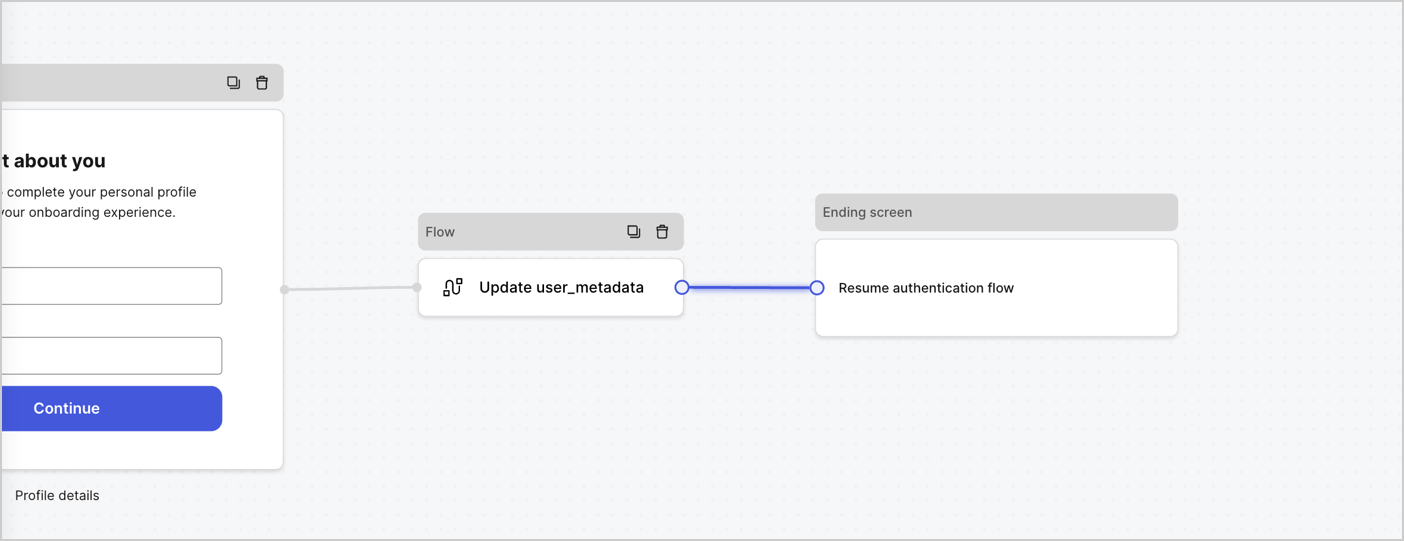
次の手順に従って、 **［Step（ステップ）］** ノードの後に​​ **［Flow（フロー）］** ノードを追加し、`user_metadata`を更新して認証フローを再開します。

1. フォームエディターの下にある **［Flow（フロー）］** を選択します。
2. **［Step（ステップ）］** と **［Ending Screen（終了スクリーン）］** ノードの間にある既存のリンクを削除します。
3. 新しい **［Flow（フロー）］** > **［Click to add a flow（クリックして、フローを追加する）］** > **［Create a new flow（新しいフローを作成する）］** を選択します。

   * **［Name（名前）］** フィールドに`Update user_metadata`を入力します。
   * **［Create（作成）］** を選択します。
   * **［Save（保存）］** を選択します。
4. 下の画像のように **［Step（ステップ）］** と **［Ending Screen（終了スクリーン）** ノードに **［Flow（フロー）］** ノードをリンクします。
5. **［Publish（公開）］** を選択し、保存します。

<Frame>
  <img src="https://mintcdn.com/docs-staging-feat-docs-5417-afc/valbvA0cS6I9nm5z/docs/images/ja-jp/cdy7uua7fh8z/4nTdYdA2Hu5vK65smkdvJg/db3294ebc25a7c2636be96362a3ea56e/custom-signup-step-flow.png?fit=max&auto=format&n=valbvA0cS6I9nm5z&q=85&s=03fffbe1c3656b23f4e9261cbc2b0f52" alt="Dashboard > Actions > Forms > Use Case Custom Signup Step Update User metadata flow" data-og-width="1404" width="1404" data-og-height="541" height="541" data-path="docs/images/ja-jp/cdy7uua7fh8z/4nTdYdA2Hu5vK65smkdvJg/db3294ebc25a7c2636be96362a3ea56e/custom-signup-step-flow.png" data-optimize="true" data-opv="3" srcset="https://mintcdn.com/docs-staging-feat-docs-5417-afc/valbvA0cS6I9nm5z/docs/images/ja-jp/cdy7uua7fh8z/4nTdYdA2Hu5vK65smkdvJg/db3294ebc25a7c2636be96362a3ea56e/custom-signup-step-flow.png?w=280&fit=max&auto=format&n=valbvA0cS6I9nm5z&q=85&s=82f91a69ab5eb7e8ddf5fb9f66dbe792 280w, https://mintcdn.com/docs-staging-feat-docs-5417-afc/valbvA0cS6I9nm5z/docs/images/ja-jp/cdy7uua7fh8z/4nTdYdA2Hu5vK65smkdvJg/db3294ebc25a7c2636be96362a3ea56e/custom-signup-step-flow.png?w=560&fit=max&auto=format&n=valbvA0cS6I9nm5z&q=85&s=93bbd74f794275521de64507dbc515be 560w, https://mintcdn.com/docs-staging-feat-docs-5417-afc/valbvA0cS6I9nm5z/docs/images/ja-jp/cdy7uua7fh8z/4nTdYdA2Hu5vK65smkdvJg/db3294ebc25a7c2636be96362a3ea56e/custom-signup-step-flow.png?w=840&fit=max&auto=format&n=valbvA0cS6I9nm5z&q=85&s=a287b1892ee231d2c860ac5f0c15c288 840w, https://mintcdn.com/docs-staging-feat-docs-5417-afc/valbvA0cS6I9nm5z/docs/images/ja-jp/cdy7uua7fh8z/4nTdYdA2Hu5vK65smkdvJg/db3294ebc25a7c2636be96362a3ea56e/custom-signup-step-flow.png?w=1100&fit=max&auto=format&n=valbvA0cS6I9nm5z&q=85&s=46214198d1410e149ade21c5359fbf50 1100w, https://mintcdn.com/docs-staging-feat-docs-5417-afc/valbvA0cS6I9nm5z/docs/images/ja-jp/cdy7uua7fh8z/4nTdYdA2Hu5vK65smkdvJg/db3294ebc25a7c2636be96362a3ea56e/custom-signup-step-flow.png?w=1650&fit=max&auto=format&n=valbvA0cS6I9nm5z&q=85&s=7586c025726d80a932f0349fb63fa616 1650w, https://mintcdn.com/docs-staging-feat-docs-5417-afc/valbvA0cS6I9nm5z/docs/images/ja-jp/cdy7uua7fh8z/4nTdYdA2Hu5vK65smkdvJg/db3294ebc25a7c2636be96362a3ea56e/custom-signup-step-flow.png?w=2500&fit=max&auto=format&n=valbvA0cS6I9nm5z&q=85&s=d1c9fe1df239feb14b35d3bead7ee194 2500w" />
</Frame>

Auth0ユーザーの更新アクションをフローに追加するには、次の手順に従います。

1. **［Flow（フロー）］** の **［Update user\_metadata（user\_metadataの更新）］** > **［Edit flow（フローの編集）］** を選択し、新しいタブでフローエディターを開きます。
2. アクションの開始の下にある **［+］** アイコンを選択し、 **Update user（ユーザーの更新）** アクションを追加します。以下のフィールドに記入して、 **［Save（保存）］** を選択し、続けてください。

   * **Connection（接続）** ：ドロップダウンからM2MアプリケーションへのVault接続を選択します。

   * **User ID（ユーザーID）** ：`{{context.user.user_id}}`と入力します。

   * **［Body（ボディ）］** ：次のコードをコピーして貼り付け、`full_name`および`job_title`プロパティを使用してuser\_metadataを更新します。

     ```json lines theme={null}
     {
       "user_metadata": {
         "full_name": "{{fields.full_name}}",
         "job_title": "{{fields.job_title}}"
       }
     }
     ```

   * **［Save（保存）］** を選択します。
3. ［Publish（公開）］を選択し、保存します。

## フォームレンダーコードを取得する

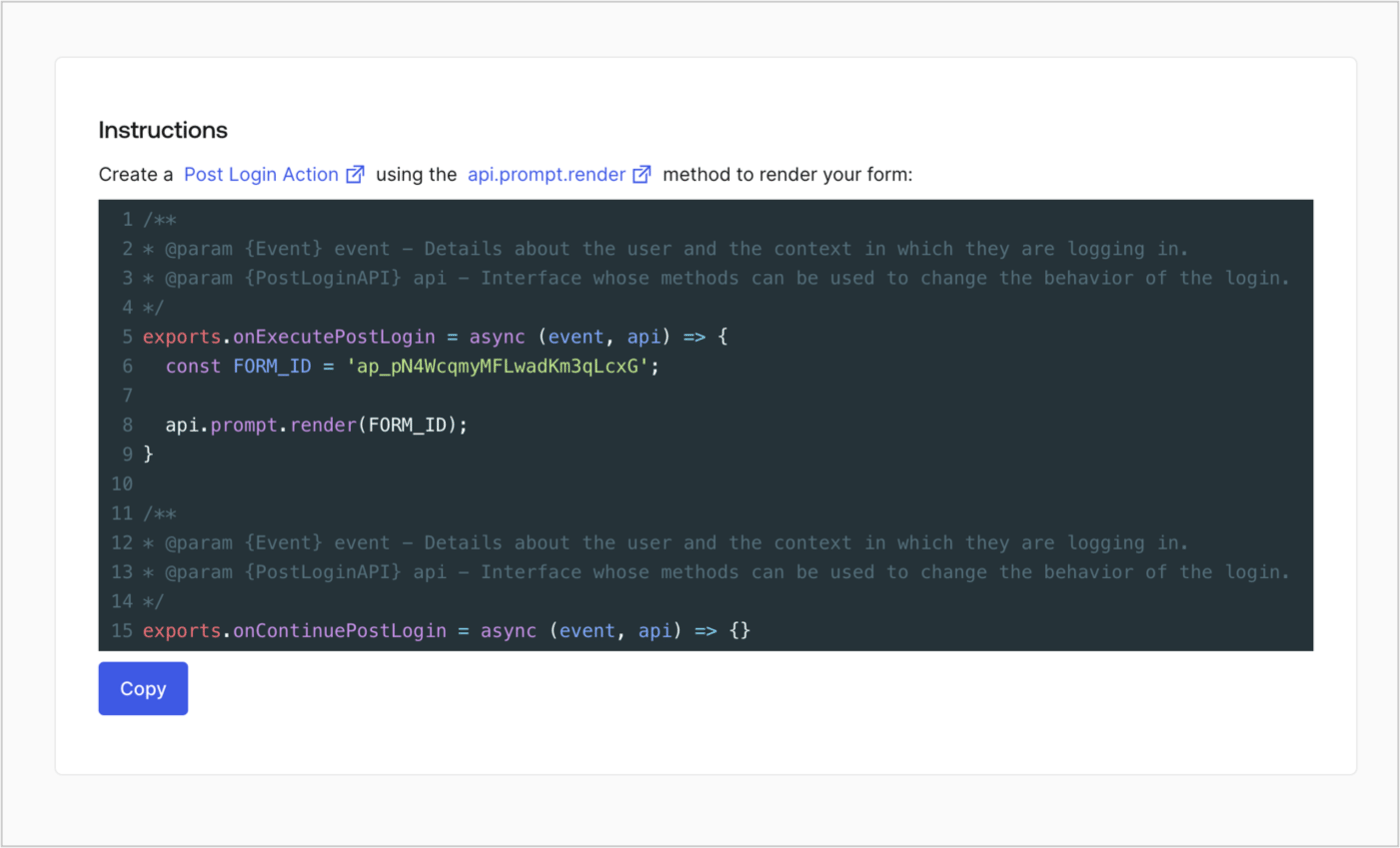
次の手順に従って、フォームレンダーコードを取得して、カスタムのログイン後アクションを使ったフォームを視覚的にレンダリングします。

* Formディターから **`<>`［Render（レンダー）］** を選択します。
* **［Copy（コピー）］** を選択します。

<Frame>
  <img src="https://mintcdn.com/docs-staging-feat-docs-5417-afc/wd-0AOYIePq_aePO/docs/images/ja-jp/cdy7uua7fh8z/2EIUzc539sq9lwoTKbjoJv/496a864c0fc44a782c9cadca119dbfb0/embed.png?fit=max&auto=format&n=wd-0AOYIePq_aePO&q=85&s=0213ae6bfe81a14b8942cb9f63d8db71" alt="Dashboard > Actions > Forms > Form > Embed" data-og-width="1400" width="1400" data-og-height="848" height="848" data-path="docs/images/ja-jp/cdy7uua7fh8z/2EIUzc539sq9lwoTKbjoJv/496a864c0fc44a782c9cadca119dbfb0/embed.png" data-optimize="true" data-opv="3" srcset="https://mintcdn.com/docs-staging-feat-docs-5417-afc/wd-0AOYIePq_aePO/docs/images/ja-jp/cdy7uua7fh8z/2EIUzc539sq9lwoTKbjoJv/496a864c0fc44a782c9cadca119dbfb0/embed.png?w=280&fit=max&auto=format&n=wd-0AOYIePq_aePO&q=85&s=7403fead3cad7305764db4e780e809da 280w, https://mintcdn.com/docs-staging-feat-docs-5417-afc/wd-0AOYIePq_aePO/docs/images/ja-jp/cdy7uua7fh8z/2EIUzc539sq9lwoTKbjoJv/496a864c0fc44a782c9cadca119dbfb0/embed.png?w=560&fit=max&auto=format&n=wd-0AOYIePq_aePO&q=85&s=c7474ce69e6c96af11a29e72c51dd897 560w, https://mintcdn.com/docs-staging-feat-docs-5417-afc/wd-0AOYIePq_aePO/docs/images/ja-jp/cdy7uua7fh8z/2EIUzc539sq9lwoTKbjoJv/496a864c0fc44a782c9cadca119dbfb0/embed.png?w=840&fit=max&auto=format&n=wd-0AOYIePq_aePO&q=85&s=ab2ef19e6539d0af101352caf6d45dc4 840w, https://mintcdn.com/docs-staging-feat-docs-5417-afc/wd-0AOYIePq_aePO/docs/images/ja-jp/cdy7uua7fh8z/2EIUzc539sq9lwoTKbjoJv/496a864c0fc44a782c9cadca119dbfb0/embed.png?w=1100&fit=max&auto=format&n=wd-0AOYIePq_aePO&q=85&s=061d24fa414d496d3f4760cb0208ad2f 1100w, https://mintcdn.com/docs-staging-feat-docs-5417-afc/wd-0AOYIePq_aePO/docs/images/ja-jp/cdy7uua7fh8z/2EIUzc539sq9lwoTKbjoJv/496a864c0fc44a782c9cadca119dbfb0/embed.png?w=1650&fit=max&auto=format&n=wd-0AOYIePq_aePO&q=85&s=6d23b9f6b0684308382d9d9fd6dc97f8 1650w, https://mintcdn.com/docs-staging-feat-docs-5417-afc/wd-0AOYIePq_aePO/docs/images/ja-jp/cdy7uua7fh8z/2EIUzc539sq9lwoTKbjoJv/496a864c0fc44a782c9cadca119dbfb0/embed.png?w=2500&fit=max&auto=format&n=wd-0AOYIePq_aePO&q=85&s=d92d732eb67069491b4f5edfa888344a 2500w" />
</Frame>

## ポストログインアクションの作成

ポストログインアクションを作成してフォームをレンダリングするには、次の手順に従います。

1. **［Auth0 Dashboard（Auth0ダッシュボード）］>［Actions（アクション）］>［Flows（フロー）］>［Login（ログイン）］** に移動します。
2. **+** アイコンを選択し、 **［Build from scratch（初めから構築する）］** を選択します。

   * **［Name（名前）］** ：`［Render Additional Signup Form（追加サインアップフォームのレンダリング）］`を入力します。
   * **［Trigger（トリガー）］** ：`［Login / Post Login（ログイン/ログイン後）］`を選択します。
   * **［Runtime（ランタイム）］** ：推奨バージョンを選択します。
3. **［Create（作成）］** を選択します。

ログイン後アクションを構成するには：

1. 既存のコードをコードエディターから削除します。

2. フォームレンダリングコードをコードエディターにペーストします。

3. コードを編集して、フォームをレンダリングする条件ロジックを定義します。

   ```javascript lines theme={null}
   /**
   * @param {Event} event - Details about the user and the context in which they are logging in.
   * @param {PostLoginAPI} api - Interface whose methods can be used to change the behavior of the login.
   */
   exports.onExecutePostLogin = async (event, api) => {
     const FORM_ID = 'REPLACE_WITH_YOUR_FORM_ID';

     if (
       !event.user.user_metadata.full_name &&
       !event.user.user_metadata.job_title
     ) {
       api.prompt.render(FORM_ID);
     }
   }

   exports.onContinuePostLogin = async (event, api) => { }
   ```

   <Callout icon="file-lines" color="#0EA5E9" iconType="regular">
     上の例にあるコードでは、ユーザーのメタデータにfull\_nameプロパティとjob\_titleプロパティがない場合にフォームが表示されます。
   </Callout>

4. **［Deploy（導入）］** を選択します。

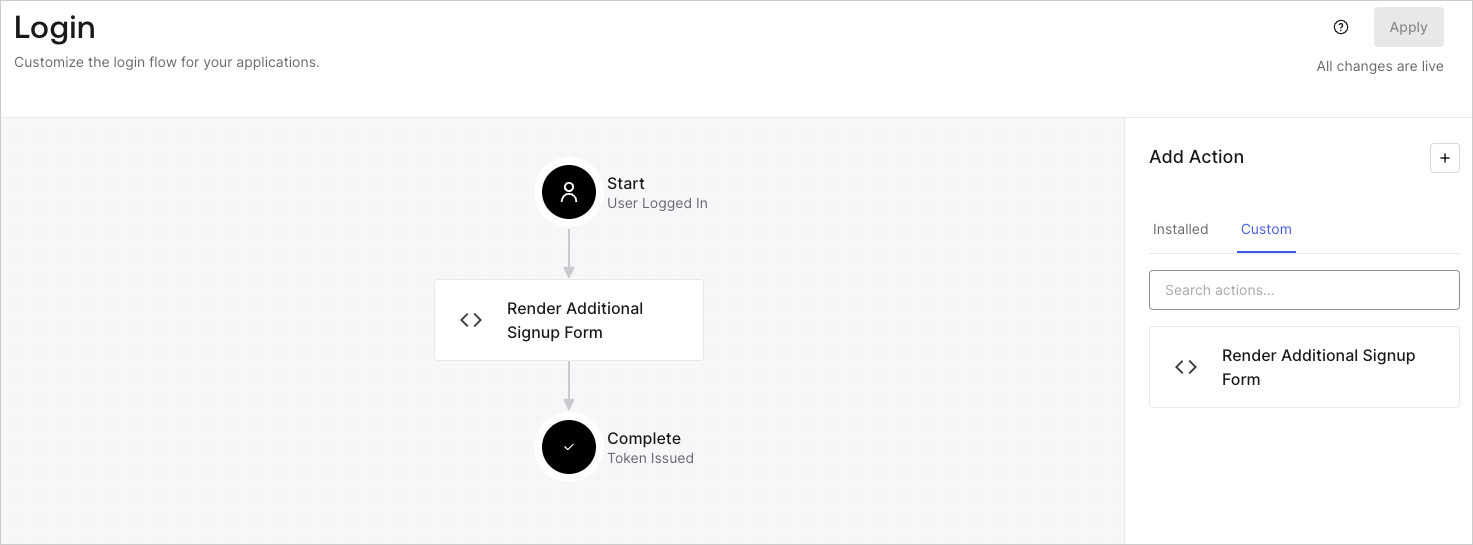
5. **［Render Additional Signup Form（追加サインアップフォームのレンダリング）］** アクションを **［Login（ログイン）］** フローにドラッグ＆ドロップします。

   <Frame>
     <img src="https://mintcdn.com/docs-staging-feat-docs-5417-afc/2kIu5R9pQl_X_AnZ/docs/images/ja-jp/cdy7uua7fh8z/1WBOicIOcH98hKj6Lq9HF2/4951e30a0cc08c7c5daa0116eaa17e11/Screenshot_2024-03-01_at_15.48.00.png?fit=max&auto=format&n=2kIu5R9pQl_X_AnZ&q=85&s=30ed935010214d01e5be408843ad117a" alt="Dashboard > Forms > Use Cases Custom Signup Steps Login Flow" data-og-width="1473" width="1473" data-og-height="545" height="545" data-path="docs/images/ja-jp/cdy7uua7fh8z/1WBOicIOcH98hKj6Lq9HF2/4951e30a0cc08c7c5daa0116eaa17e11/Screenshot_2024-03-01_at_15.48.00.png" data-optimize="true" data-opv="3" srcset="https://mintcdn.com/docs-staging-feat-docs-5417-afc/2kIu5R9pQl_X_AnZ/docs/images/ja-jp/cdy7uua7fh8z/1WBOicIOcH98hKj6Lq9HF2/4951e30a0cc08c7c5daa0116eaa17e11/Screenshot_2024-03-01_at_15.48.00.png?w=280&fit=max&auto=format&n=2kIu5R9pQl_X_AnZ&q=85&s=1fde310aa9ad85102fcff3be84322478 280w, https://mintcdn.com/docs-staging-feat-docs-5417-afc/2kIu5R9pQl_X_AnZ/docs/images/ja-jp/cdy7uua7fh8z/1WBOicIOcH98hKj6Lq9HF2/4951e30a0cc08c7c5daa0116eaa17e11/Screenshot_2024-03-01_at_15.48.00.png?w=560&fit=max&auto=format&n=2kIu5R9pQl_X_AnZ&q=85&s=4e417ad46e44507d3b86a3a1d1b9d819 560w, https://mintcdn.com/docs-staging-feat-docs-5417-afc/2kIu5R9pQl_X_AnZ/docs/images/ja-jp/cdy7uua7fh8z/1WBOicIOcH98hKj6Lq9HF2/4951e30a0cc08c7c5daa0116eaa17e11/Screenshot_2024-03-01_at_15.48.00.png?w=840&fit=max&auto=format&n=2kIu5R9pQl_X_AnZ&q=85&s=63b38dec7a921cbe100f10af4b6d4086 840w, https://mintcdn.com/docs-staging-feat-docs-5417-afc/2kIu5R9pQl_X_AnZ/docs/images/ja-jp/cdy7uua7fh8z/1WBOicIOcH98hKj6Lq9HF2/4951e30a0cc08c7c5daa0116eaa17e11/Screenshot_2024-03-01_at_15.48.00.png?w=1100&fit=max&auto=format&n=2kIu5R9pQl_X_AnZ&q=85&s=16e83181cb37533cdd7818f918069316 1100w, https://mintcdn.com/docs-staging-feat-docs-5417-afc/2kIu5R9pQl_X_AnZ/docs/images/ja-jp/cdy7uua7fh8z/1WBOicIOcH98hKj6Lq9HF2/4951e30a0cc08c7c5daa0116eaa17e11/Screenshot_2024-03-01_at_15.48.00.png?w=1650&fit=max&auto=format&n=2kIu5R9pQl_X_AnZ&q=85&s=4b11b8cdfb73cb126f2f929b6fa41b57 1650w, https://mintcdn.com/docs-staging-feat-docs-5417-afc/2kIu5R9pQl_X_AnZ/docs/images/ja-jp/cdy7uua7fh8z/1WBOicIOcH98hKj6Lq9HF2/4951e30a0cc08c7c5daa0116eaa17e11/Screenshot_2024-03-01_at_15.48.00.png?w=2500&fit=max&auto=format&n=2kIu5R9pQl_X_AnZ&q=85&s=c9ff1539200ac11a591f9b9db7967162 2500w" />
   </Frame>

6. **［Apply（適用）］** を選択します。

### 実装のテスト

次の手順に従って実装をテストします。

* 新規ユーザーでアプリケーションにサインアップします。
* ログインフローのログイン後アクションでは、フォームがレンダリングされ、情報の入力が求められます。
* **［<Tooltip data-tooltip-id="react-containers-DefinitionTooltip-0" href="/docs/ja-jp/glossary?term=auth0-dashboard" tip="Auth0 Dashboard: サービスを構成するためのAuth0の主製品。" cta="用語集の表示">Auth0 Dashboard</Tooltip>（Auth0ダッシュボード）］>［User Management（ユーザー管理）］>［Users（ユーザー）］** を選択し、新しいユーザーを見つけ、その属性`full_name`および`job_title`が追加サインアップステップからの情報を含んでいることを検証します。